



iPads and tablets work exceptionally well as digital information terminals, at reception desks, or as control panels in the meeting room. The moment a guest or a colleague accidentally swipes into the Photos app or opens the browser, however, the entire experience falls apart. iPad Kiosk Mode, correctly named Guided Access by Apple, solves precisely this problem: the iPad stays locked to a single app, swipe gestures and hardware buttons are disabled, and you keep full control over what your visitors see.
In this guide we show you, step by step, how to set up Kiosk Mode on the iPad, which extensions make sense for multiple devices, and which hardware to look for. Precisely designed, accurately configured, securely mounted.
What is iPad Kiosk Mode?
Strictly speaking, Apple offers two different modes that are commonly grouped under the term iPad Kiosk Mode:
- Guided Access is an accessibility feature that any user can activate directly on the device. The iPad starts the chosen app and locks itself to it. Hardware buttons and specific screen areas can be selectively disabled. Ideal for temporary deployments, small installations and quick configurations.
- Single App Mode (also "Guided Single App Mode") is set up via Apple Configurator or an MDM system. The iPad automatically opens the assigned app on every restart and cannot be exited without an administrator passcode. Ideal for permanently installed iPads in museums, retail and reception areas.
Anyone mounting an iPad on the wall as a digital information terminal almost always starts with Guided Access. Once the installation is in place and the app runs reliably, many operators switch to Single App Mode to fully eliminate tampering and accidental misuse.

Set Up iPad Kiosk Mode: a Four-Step Guide
Guided Access can be activated on any iPad running iPadOS 13 or later. You don't need an additional device or a software licence, just physical access to the iPad and the app you want to lock.
Step 1: Enable Guided Access in Settings
Open the Settings app and go to Accessibility → Guided Access. Switch the feature on. Tap Passcode Settings and define a six-digit code. You will use this code later to exit Guided Access. Also enable Face ID or Touch ID as an emergency exit in case you ever forget the code.
Step 2: Define the Side Button Shortcut
In the same menu you will find the Accessibility Shortcut option. Activate Guided Access here. From now on, you start Kiosk Mode by triple-clicking the side or Home button, without having to open Settings again.
Step 3: Launch the Target App and Activate Guided Access
Open the app the iPad should display exclusively. That could be Safari on a specific URL, a museum app, a reservation system or your own web app. Triple-click the side button. Guided Access starts and the system asks which areas should be restricted.
Step 4: Lock Hardware Buttons and Screen Areas
In the configuration menu, disable everything that is not part of the app's function: Volume buttons, Sleep/Wake button, Motion, Keyboard, Touch, Dictionary Lookup and Time Limit. Using your finger, you can additionally mark individual screen areas to block from touch input, for example an advertisement inside a museum app. Confirm with Start, enter the passcode. The iPad is now in Kiosk Mode.
To exit, triple-click the side button again and enter the code. Only then can the iPad be operated normally.
Single App Mode: for Permanently Installed iPads
For an iPad that hangs on the same wall for years and always shows the same app, Guided Access is too fragile: one restart, one update, one fully drained battery, and the mode has to be configured again. This is where Single App Mode comes in.
Single App Mode is configured via Apple Configurator 2 on a Mac or through an MDM system (Mobile Device Management). The iPad must be enrolled in Apple Business Manager and registered through the Device Enrolment Program (DEP). A configuration profile then defines which app the device opens at every startup. Even after a factory reset this binding remains in place, provided the company's Apple ID is configured.
The effort pays off for installations of around five devices or more, or anywhere tampering must be ruled out. For a single reception lobby, Guided Access is more than sufficient.
MDM Solutions: Kiosk Mode for Many iPads at Once
Anyone operating 20, 50 or 200 iPads as information terminals or ordering systems will not get around an MDM platform. Established vendors in the European market include Jamf Pro, Hexnode, Scalefusion, Microsoft Intune and Cisco Meraki Systems Manager. All offer Single App Mode functions, over-the-air app updates and centralised remote locking for lost devices.
The most important selection criteria:
- Apple certification: look for the official Apple Business Manager partner listing.
- Kiosk profiles: multiple apps in a rotating mode, browser allowlists, custom branding options.
- Reporting: online status, battery level, app crashes and location tracking per device.
- Pricing at scale: licences are billed per device and month, typically between 1 and 5 euros per iPad.
Important: MDM does not replace Guided Access, it automates it. For a single iPad, the effort is not worth it.

Hardware: the iPad Must Be Securely Mounted and Permanently Charged
Software is only half the job. An iPad in Kiosk Mode that goes dark after eight hours on battery, or disappears together with its wall mount, has missed its purpose. Three hardware requirements are non-negotiable.
Mounted Theft-Proof
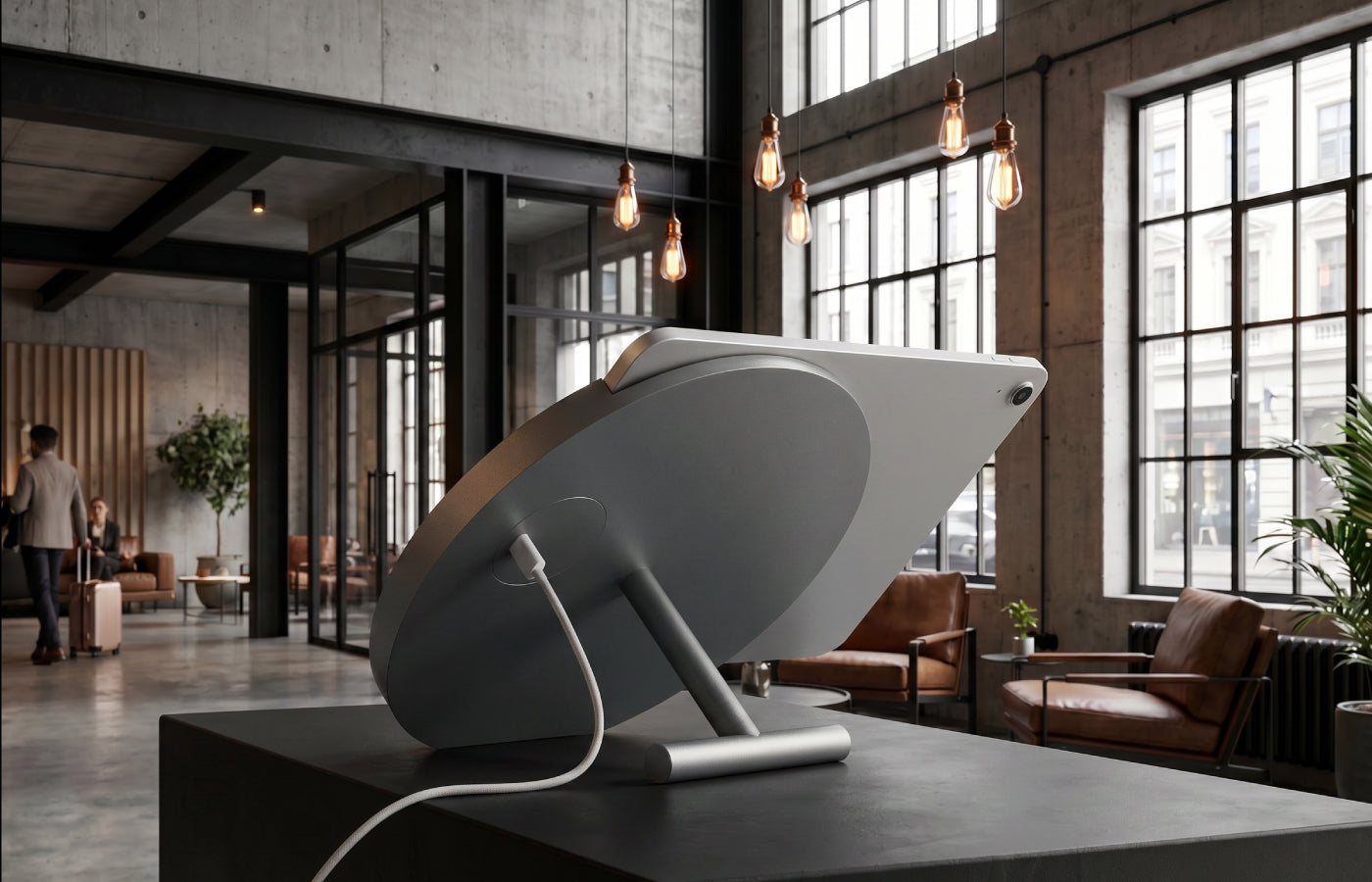
In publicly accessible spaces such as museums, retail floors, reception areas and conference foyers, you need an anti-theft protected iPad wall mount. The Companion Wall 2.0 iPad mount features a powder-coated aluminium design, anti-theft protection, and permanent charging enabled by a concealed cable and flush-mounted power supply. The Dame Wall 2.0 is machined from a single aluminium block, finished in anodised aluminium, lockable and theft-proof, with the charging cable included.
Permanently Charged
An iPad in continuous operation must never run out of power. The ideal solution is a flush-mount USB-C power supply placed behind the wall mount in a wall box. The cable is invisible and stays hidden inside the mount. If you would rather not run a new line, you can alternatively route a flat USB-C cable to the nearest socket. The full background on permanent power supply is covered in our article Keeping Your Tablet Permanently Connected to Power.
Built for Your Exact Model
A professional wall mount is built precisely for the specific iPad model to offer perfect fit, secure hold, and flawless aesthetics. At Displine you will find the right iPad wall mount for every current iPad generation, and the matching Samsung Tab wall mount for Samsung tablets.
Three Typical Kiosk Setups
Museum: Guided Access with an Audio Guide App
In the entrance area of a museum, an iPad sits in a Companion Wall 2.0. It displays the audio guide app in full-screen mode. The volume buttons are locked, the time limit is set to 30 minutes, after which the iPad resets itself. The integrated anti-theft protection ensures that the device remains securely in place. Power comes from a flush-mounted power supply hidden behind the mount.
Retail: Single App Mode with a Point-of-Sale System
In a boutique, the iPad is placed in a Sunset Stand at the counter. In Single App Mode it automatically launches the ready2order or helloTESS app. Staff log in, customers never see the app being exited. Through MDM, software updates roll out over the air the moment the boutique closes.
Meeting Room: Guided Access with Room Booking
A meeting room iPad in a Dame Wall 2.0 wall mount serves as a digital door sign. A room booking app like Joan or Roomz shows the schedule. Guided Access locks the iPad to the app, a flush-mounted power supply keeps the battery permanently topped up. After a power outage, Single App Mode relaunches the app automatically.

Frequently Asked Questions
What is the difference between Guided Access and Single App Mode?
Guided Access is enabled directly on the iPad and is not automatically restored after a restart. Single App Mode is configured through Apple Configurator or an MDM system and survives restarts and factory resets. For temporary use Guided Access is enough, for permanent installations Single App Mode is the better choice.
Can iPad Kiosk Mode be exited without administrator rights?
No. Both Guided Access and Single App Mode can only be ended using the stored passcode, with Face ID, Touch ID or through the MDM system. A hard reset (long-pressing the side button together with a volume button) can be prevented by locking the hardware buttons. After a factory reset via iTunes, Single App Mode remains active as long as the device is enrolled in DEP.
Which apps are suitable for iPad Kiosk Mode?
Practically every iPad app can be operated in Kiosk Mode: Safari on a fixed URL, Apple Maps, in-house audio guides, reservation systems like SevenRooms, ordering systems like ready2order, room booking apps like Joan or Roomz. Make sure the app itself does not contain ads or external links that would effectively bypass Kiosk Mode.
Does Guided Access also work without an internet connection?
Yes. Guided Access is a local iPadOS feature and does not require an active internet connection. Cloud-based apps running inside Kiosk Mode need Wi-Fi, the mode itself works offline.
How many iPads can I run in Kiosk Mode at the same time?
Guided Access: theoretically unlimited, practically sensible up to five devices, since each one has to be configured manually. Single App Mode via MDM: scales to hundreds or thousands of devices, depending on the chosen MDM platform and licensing model.
Which hardware do I need for a professional kiosk setup?
At least three components: a current iPad (iPad 10th generation or iPad Air 4th generation upwards), an anti-theft wall mount such as the Companion Wall 2.0 or Dame Wall 2.0, and a permanent power supply through a flush-mounted power adapter or a PoE converter. For multiple devices an MDM solution completes the setup.


Leave a comment
This site is protected by hCaptcha and the hCaptcha Privacy Policy and Terms of Service apply.